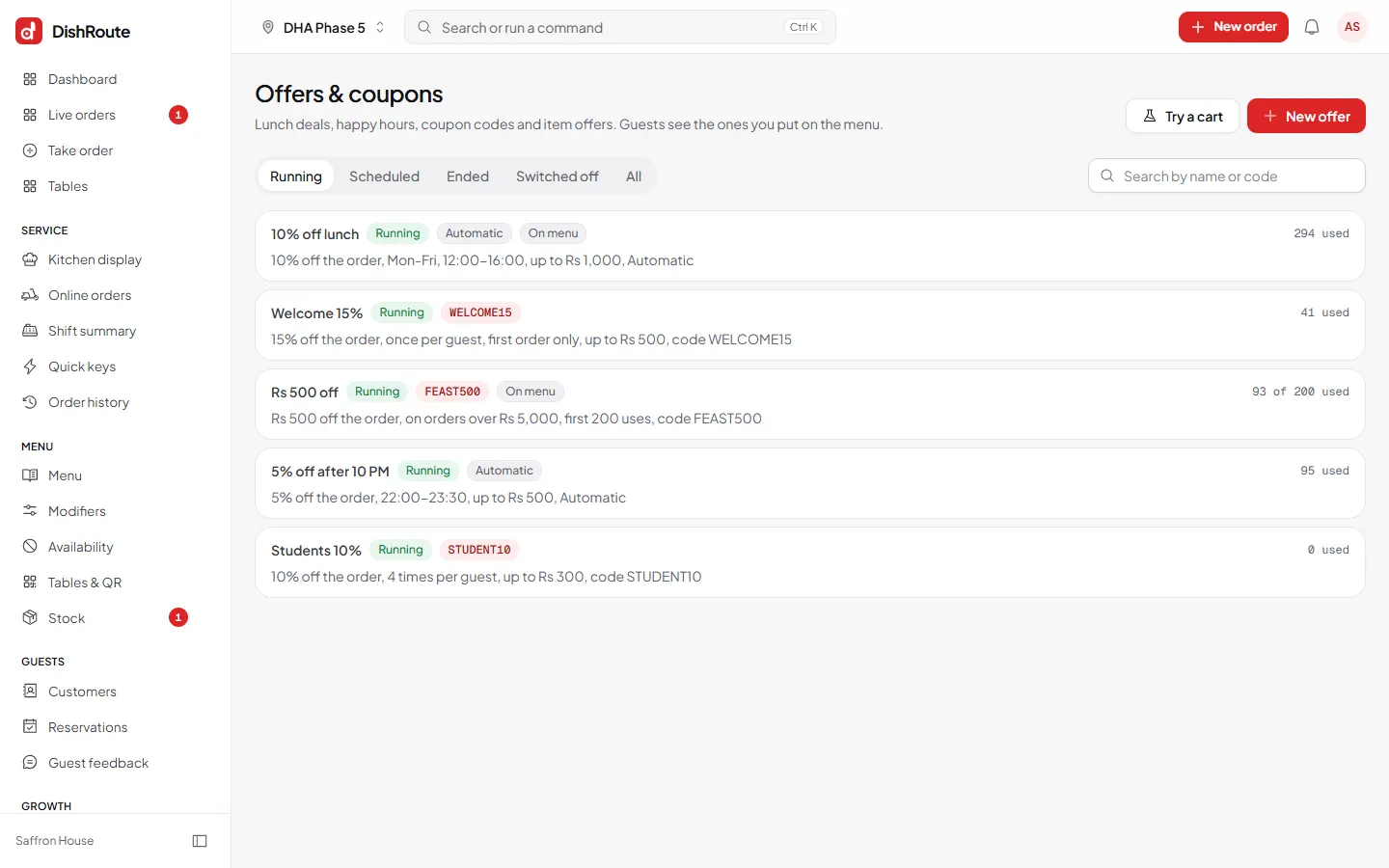
Offers lower the price automatically. Coupons need a code. Guests see the offers you put On menu.
Create an offer
- Open Offers & coupons from the left menu.
- Choose New offer.
- Name it and choose what it gives: a percent off, an amount off, or an item offer.
- Set the rules. Add days and hours (for example Mon to Fri, 12:00 to 16:00), a minimum order, a maximum discount and how many times each guest or everyone may use it.
- Choose automatic or code. An automatic offer applies by itself. For a coupon, type the code, such as WELCOME15.
- Choose where it shows. Switch on On menu to show it to guests.
- Save. Check it under the Running tab.
Test before guests see it
Choose Try a cart at the top. Add items and see which offers apply right now at this branch.
Manage offers
Use the tabs Running, Scheduled, Ended, Switched off and All. Each offer shows how many times it was used.
Note
Staff without discount permission need a manager PIN to give a manual discount.
Related
Was this page helpful?
Good to hear. Your answer is not sent or saved.
Sorry about that. Tell us what was missing and we will improve this guide. Tell us