On this page
Take order is the fast counter screen for walk-in guests and phone orders. It is built for a few taps per dish.
Take a walk-in order
- Open Take order from the left menu or tap New order at the top.
- Choose the order type. Pick Dine in, Takeaway or Delivery at the top. For dine in, choose the table.
- Pick a category from the photo strip, or search for a dish.
- Tap a dish to add it. Tap again to add another. The ticket on the right shows the lines and the total.
- Choose options when asked. A dish with sizes or extras opens a sheet. Pick what the guest wants and confirm.
- Add a note for the kitchen if needed.
- Choose Charge to take payment, or send it to the kitchen first.
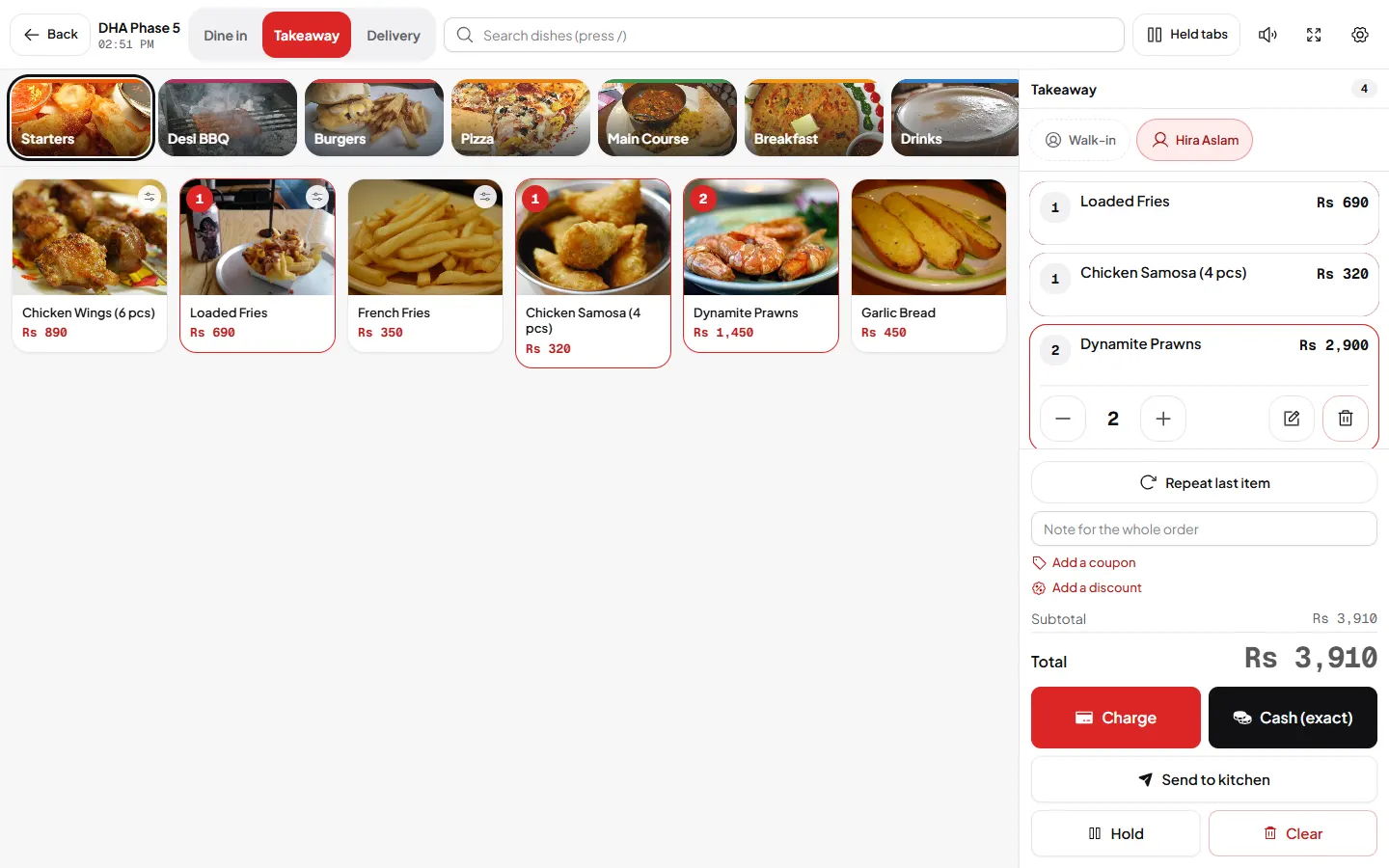
Options, quantity and removing
Tap the options icon on a dish to open its sizes and extras. On the ticket you can change a quantity or remove a line. Tap Clear to remove every line and start again.
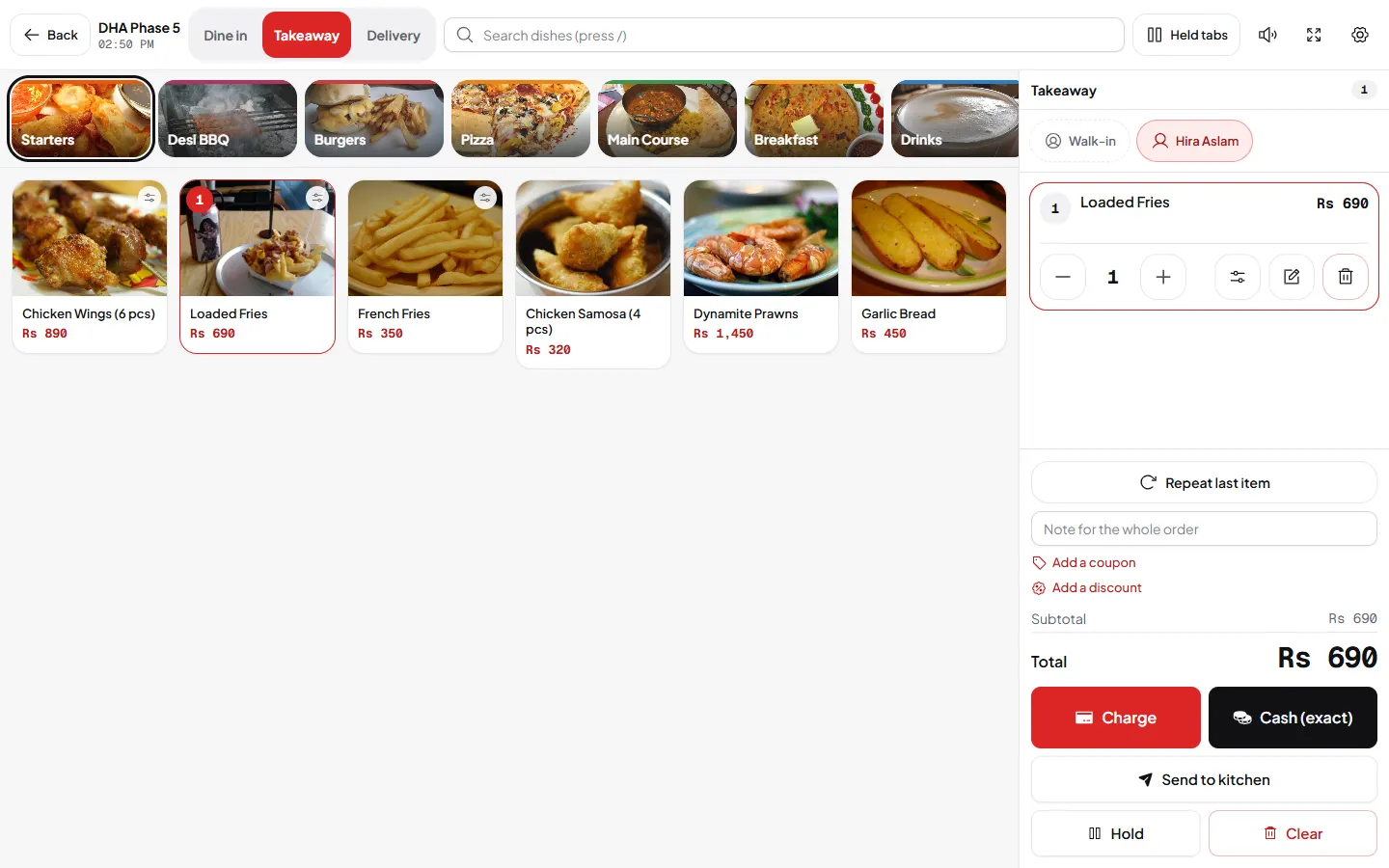
Hold an order and come back
A guest is still choosing, or a call comes in? Press Hold. The order is parked as a tab.
- Press Hold on the ticket. It is saved under Held tabs.
- Serve the next guest.
- Open Held tabs at the top, find the order and press Resume.
If you start a new order before sending the earlier one, DishRoute saves the earlier one in your held orders automatically, so nothing is lost.
Quick keys
Under Quick keys a manager can pin the fastest sellers so they appear first on the counter.
Related
Was this page helpful?
Good to hear. Your answer is not sent or saved.
Sorry about that. Tell us what was missing and we will improve this guide. Tell us