This page is for owners and staff. It shows what a guest sees so you can help them. Guests need no app and no account.
What the guest does
- Scan the QR code on the table. The branded menu opens in the phone browser.
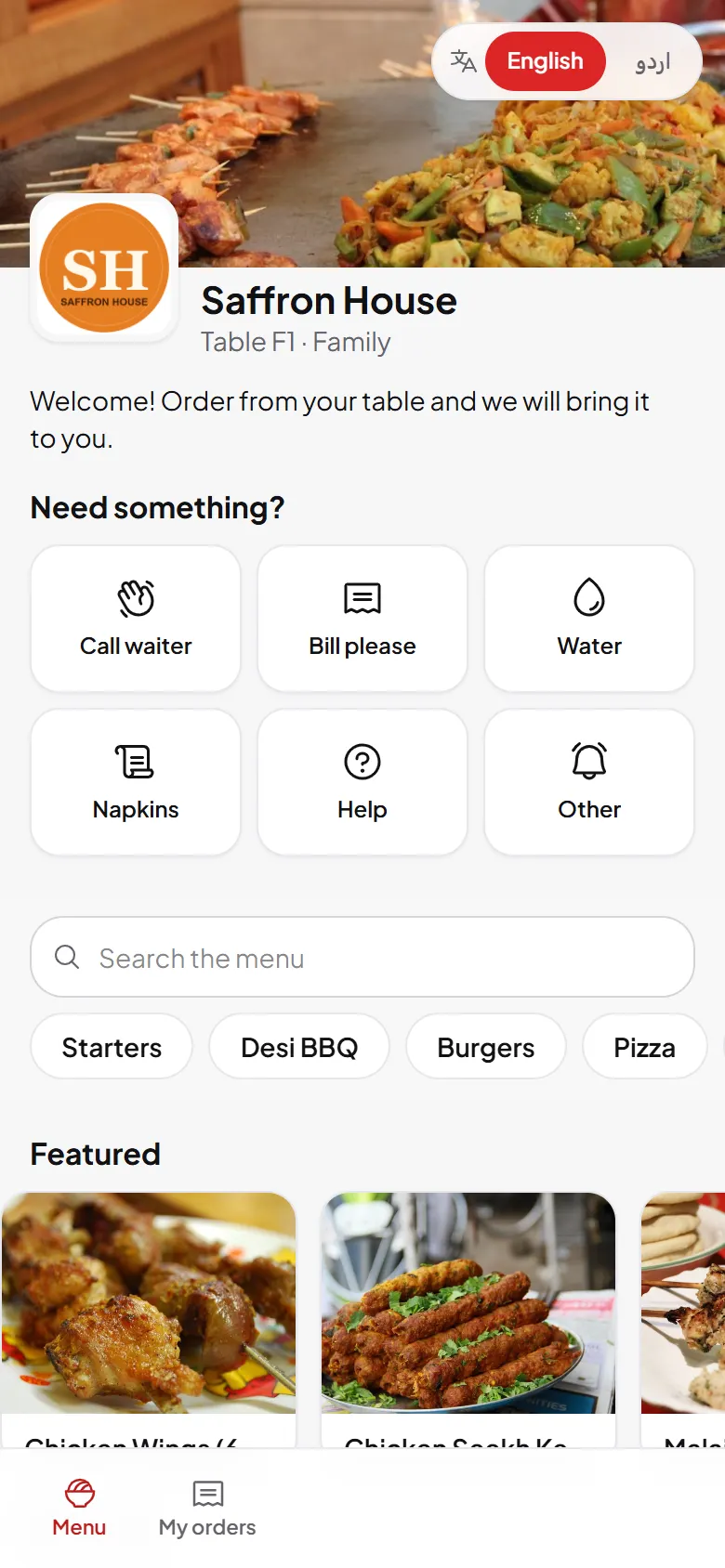
- Browse and search. Categories, photos, featured dishes and offers are on one page.
- Open a dish. Choose a size, tick extras and add a note for the kitchen.
- Review the cart. The guest sees subtotal, tax, service charge, any discount and the total.
- Choose how to pay and place the order. They get an order number.
- Follow the order. The status page shows Received, In queue, Preparing, Prepared and Served.
- Ask for help. Buttons let them call a waiter, ask for the bill, water or napkins.
Tracking an order
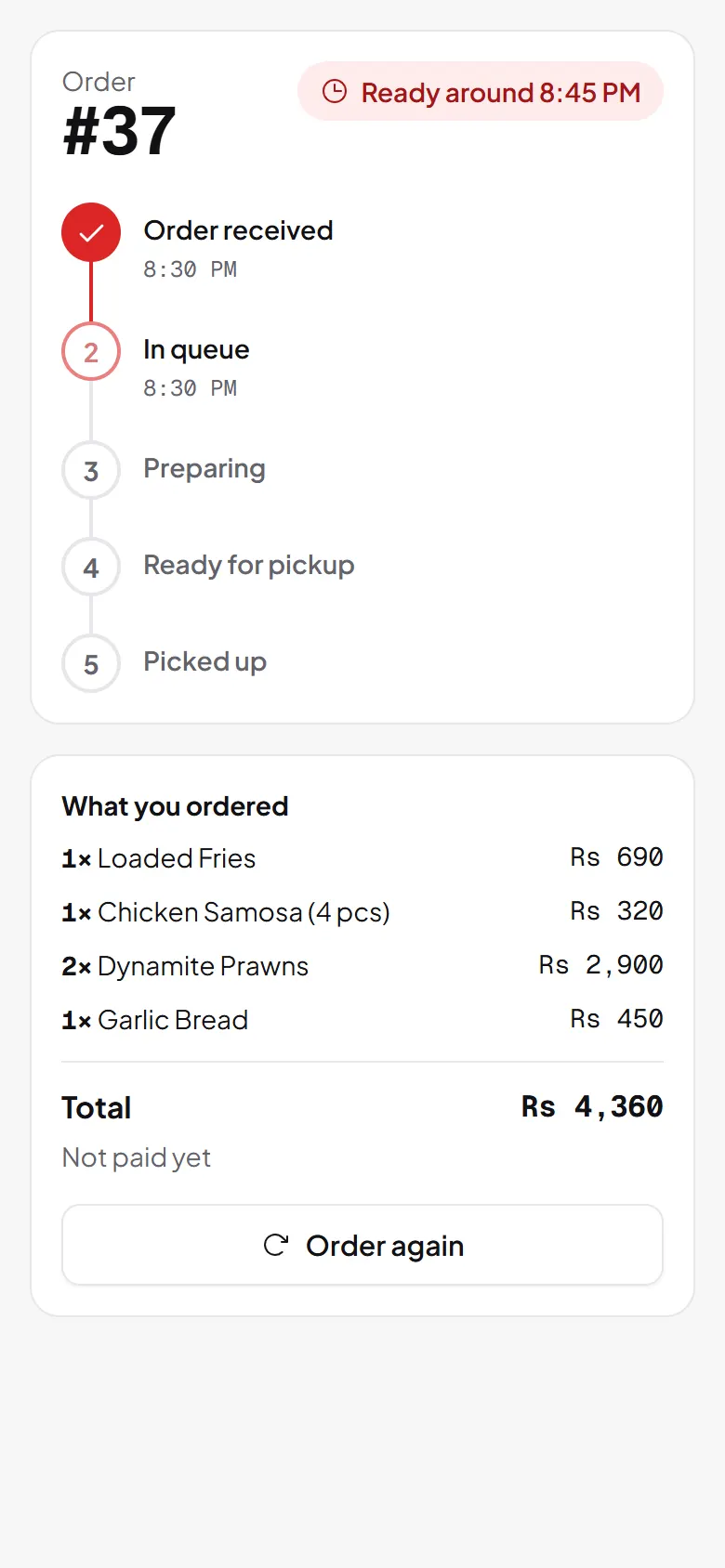
The page updates by itself. A guest can add to the order or order again from the same page.
What staff see
The order lands on Live orders with a chime, and on the kitchen display once it is accepted. A call for the waiter makes the table show Needs attention on the floor.
Related
Was this page helpful?
Good to hear. Your answer is not sent or saved.
Sorry about that. Tell us what was missing and we will improve this guide. Tell us