On this page
Find a payment and its receipt
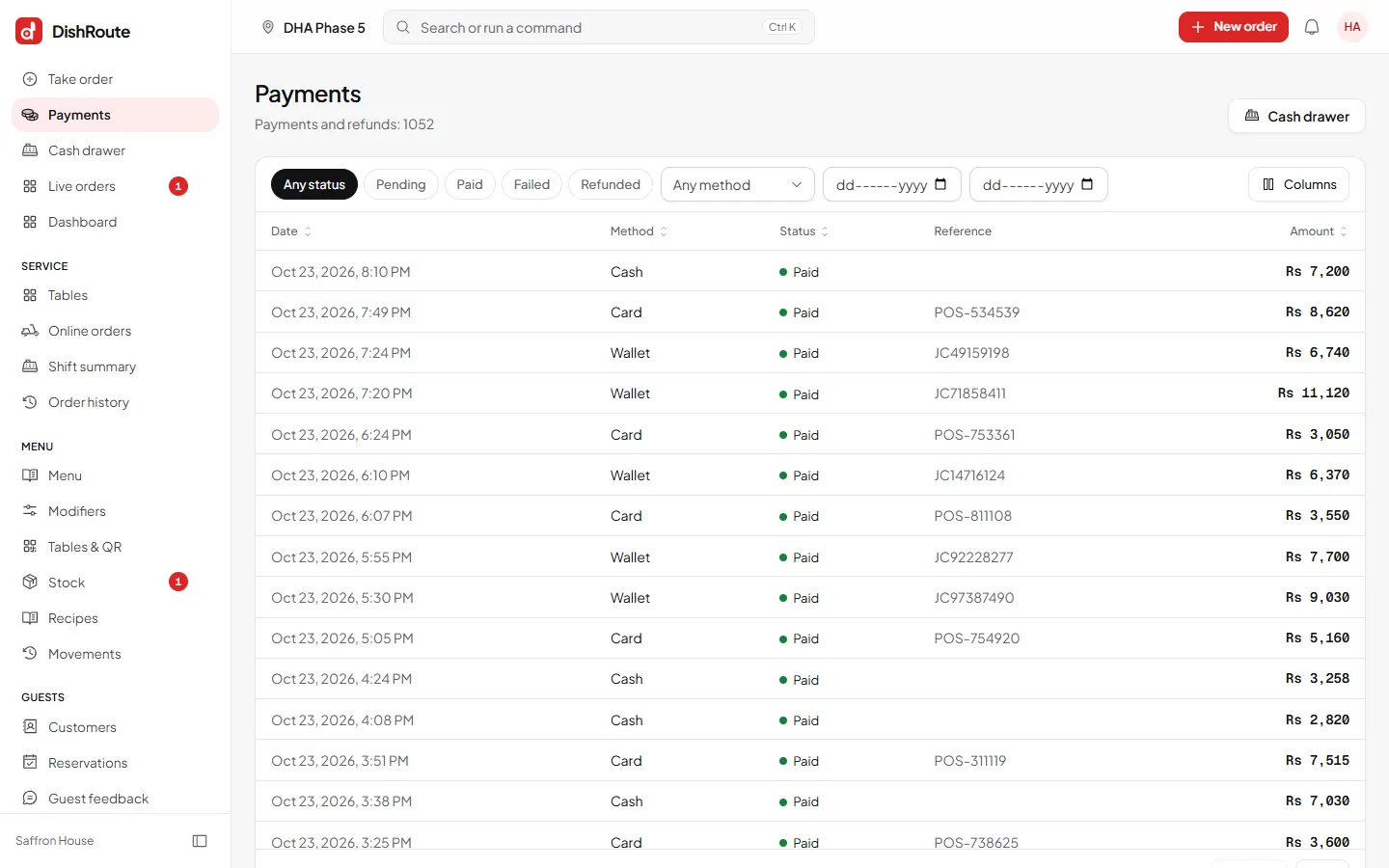
- Open Payments from the left menu. It lists payments and refunds.
- Search or filter by date, method or order.
- Open the payment to see the order, the method and the receipt.
- Print or share the receipt or invoice again if the guest needs a copy.
Give a refund
Managers and owners (roles with the refund permission) refund on their own. Cashiers can ask for a refund too, but a manager must approve it (see below).
- Open the payment you are refunding.
- Choose Refund. The page shows the most you can refund.
- Type the amount and a reason, then choose Refund now.
- Hand over the money in the same method if it was cash.
Refunds by a cashier with a manager's PIN
When a cashier chooses Refund now, DishRoute asks a manager to approve. The manager chooses their name and types their 4 to 6 digit PIN on the same device, and the refund goes through. A wrong PIN shows an error in the box, and five wrong PINs lock that manager's PIN for 5 minutes. The refund records both people: the cashier who asked and the manager who approved. The order timeline shows "Approved by", and so does the refund slip.
Owners control this in Settings, Payments:
- Cashiers can refund with a manager's PIN (on by default). Switch it off and only managers and owners can refund.
- Largest refund a PIN can approve (optional). A cashier cannot refund more than this, even with a PIN. Leave it empty for no limit.
A refund is a new record. Your reports show both the payment and the refund, and the original is never edited. You can print a Refund slip.
Note
Taking items off an order after the kitchen started, or giving a discount, needs a manager to approve it with their PIN. See add staff and choose their roles.
Related
Was this page helpful?
Good to hear. Your answer is not sent or saved.
Sorry about that. Tell us what was missing and we will improve this guide. Tell us